 Moneta guide
Open Moneta
Getting started
Moneta is a zero-based envelope budget, in the spirit of YNAB and Actual Budget. You give every unit of money a job before you spend it: income lands in Ready to Assign, you move it into categories, and spending draws those categories down. When one runs dry, you decide where the money comes from, instead of finding out at the end of the month.

Your data stays on this device
Moneta runs entirely in your browser. There is no account to create, no server and no tracking. Each budget is a database file kept in the browser's private storage for the site, and it never leaves your device on its own.
That is the whole point, but it has one consequence: nobody keeps a copy for you. Clearing the site's data, or losing the device, loses the budget. Back up from Settings → Backup every couple of weeks (Moneta reminds you when the last backup is more than two weeks old), or turn on automatic backups to your Google Drive. See Your data and backups.
Try the demo
On the welcome page, Try the demo opens a year of sample data: accounts, a credit card, schedules and reports already filled in. Nothing you do there is saved. When you are ready, Create my budget in the banner starts your own.
Install it as an app
Moneta works in a browser tab, but installed it is better protected and works offline.
- Chrome, Edge and Android: use Install Moneta on the welcome page, or Install in the browser's menu.
- iPhone and iPad: tap the Share button, then Add to Home Screen.
- Safari on a Mac: open the File menu, then Add to Dock.
- Firefox: open the browser menu, then Install.
Use it in the browser, on the welcome page, skips installing: it shows the warning below first, then opens Moneta.
In a browser tab, the browser may clear the site's data to free up space, and Safari may clear it when you don't open Moneta for a week. If you stay in the browser, back up regularly.
Updates download by themselves. When a new version is ready, Moneta offers to reload; you can also look for one in Settings → About → Updates.
Create your first budget
The first time you open Moneta, a few steps set up your budget:
- Welcome: how Moneta works.
- One thing to know: backups are up to you. Here, Already have a backup? restores a
.monetafile (or an older.sqliteone) to bring your budgets back and skip the rest. - Your budget: its name, the currency, and the number and date format.
- Your categories: pick from a starter list organized in groups (Bills, Everyday, Goals, Fun), add your own, or start with none. The Income group is always created.
- Your first account: usually your checking account and its current balance. You can skip this and add accounts later.
- You're all set: the budget opens, with a short tour of the basics: Ready to Assign, your categories, adding a transaction, the months and your accounts. It then shows where schedules, reports and backups are, and opens each of those screens. Skip ends it, and it doesn't come back by itself; Settings → About → Take the tour shows it again.
A budget you add later from Settings → Budget files → New budget asks only for steps 3 to 5.
Then:
- Look at Ready to Assign: the money in your accounts that has no job yet.
- Assign it to your categories until Ready to Assign reaches zero.
- Record what you spend and receive as it happens, or import your bank statements.
- Mark what you want to follow with a flag, like the dinners your job pays back or the costs of a trip, and find it again with the filters and the reports.
How the budget works explains each number on the budget screen. New to envelope budgeting? The glossary explains the words, and Everyday situations shows how to record refunds, annual bills, card debt and more.
One tab at a time
A budget can be open in only one tab or window at a time. If Moneta is already open somewhere else, the new tab says so and offers Use Moneta here, which asks the other tab to step aside. If the other tab is frozen in the background, close it, or use Open here anyway: whatever the other tab hadn't saved yet is lost.
Where things are
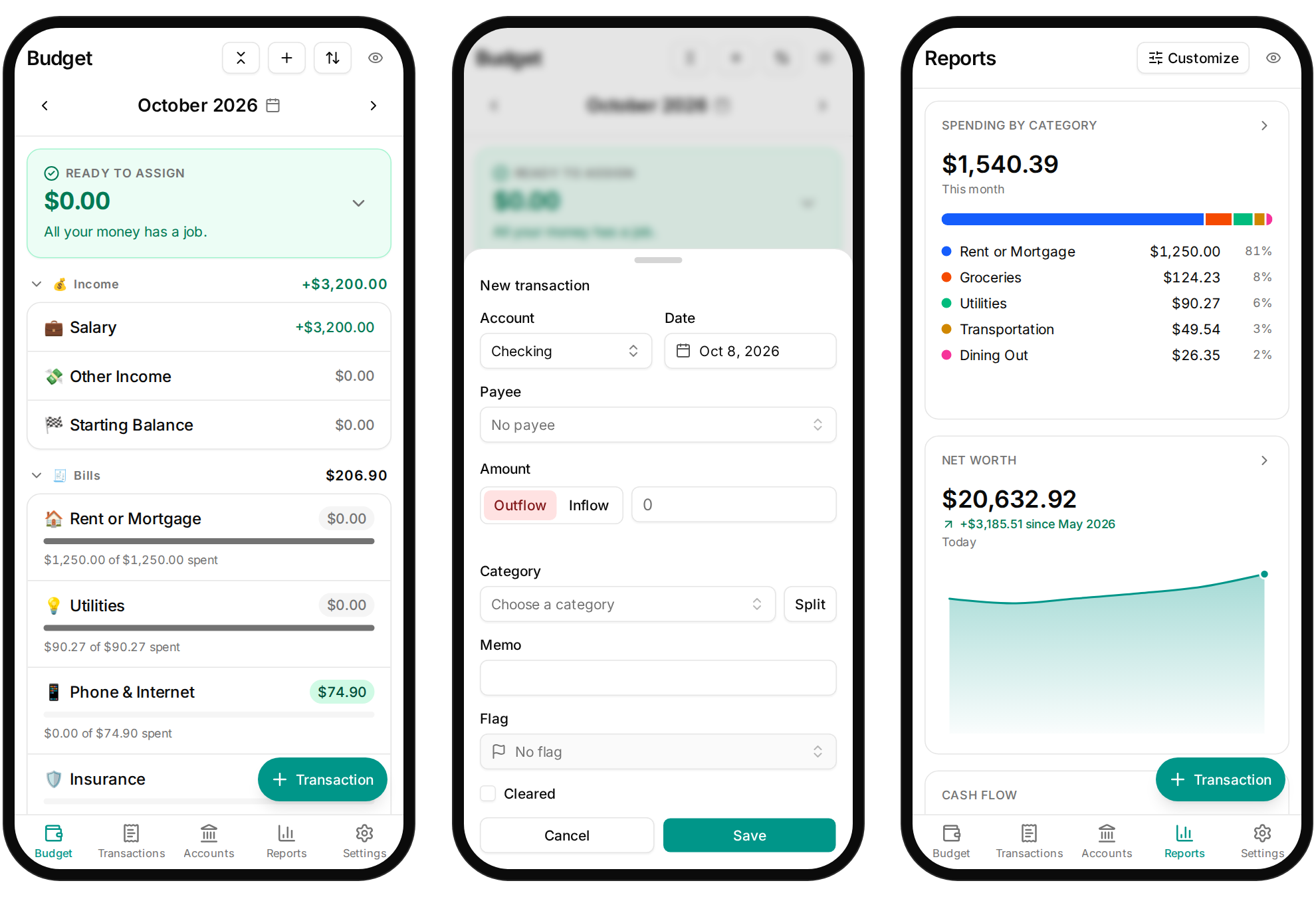
On a phone, the bar at the bottom holds Budget, Transactions, Accounts, Reports and Settings, and the floating button adds a transaction. Payees and scheduled transactions are inside Transactions: a Payees button, and the Scheduled tab. On a wider screen the sidebar on the left lists them all, Payees and Schedules included, with your accounts and their balances below. Drag its edge to make it wider or narrower, or collapse it to icons.
The eye at the top right of the pages that show money hides all amounts, on every screen, until you tap it again: handy in public or when sharing your screen. This device remembers the choice.